![Untitled design (55).png]](https://help.yourhere.ca/hs-fs/hubfs/Untitled%20design%20(55).png?width=125&height=50&name=Untitled%20design%20(55).png)
This article describes how to add premade, youRhere-supplied seasonal graphics to an existing Playlist or Screensaver. For help setting up a Playlist or Screensaver for the first time, click here: How do I Manage Screensavers or Playlists?
I want to...
Adding a New Slide
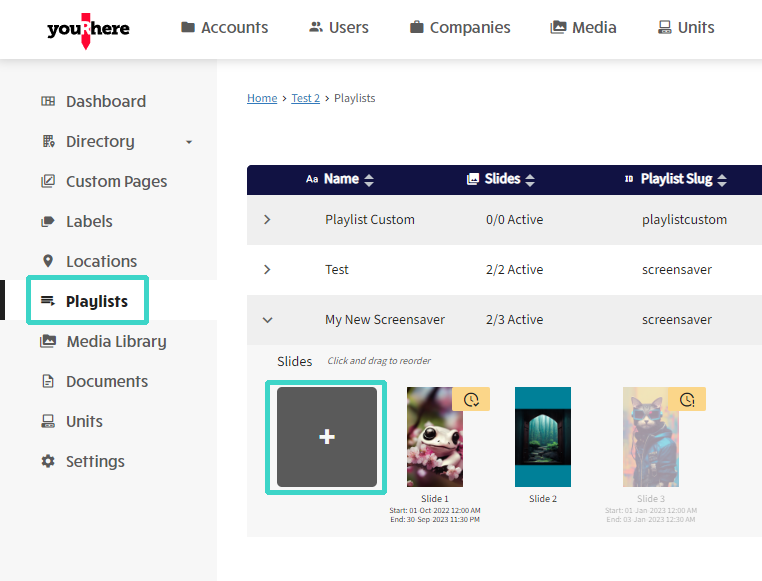
On the side Nav, click Playlists.
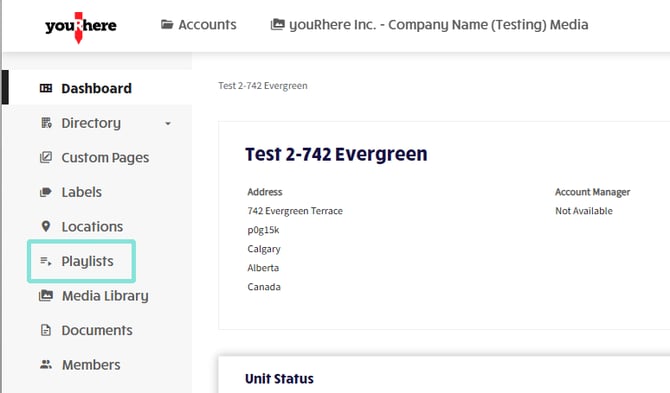
Click on the carat to expand the slide view if needed and click the large plus icon to add a new slide to the playlist.
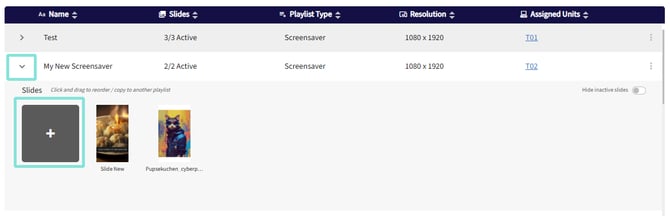
In the dialog that pops up, fill out the details for your new slide, including any schedule you want to add. Click on the large folder on the left to select or upload media. The preview box on the left automatically resizes to fit the dimensions you specified for the screensaver.
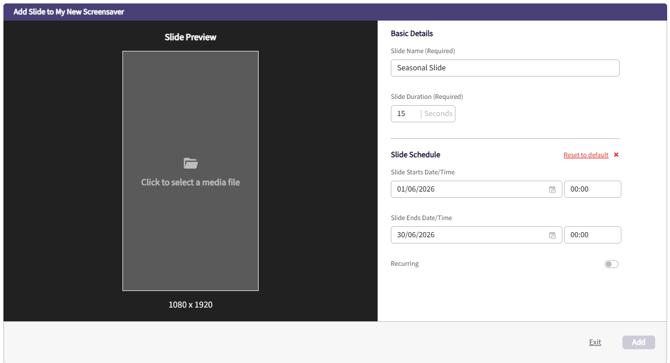
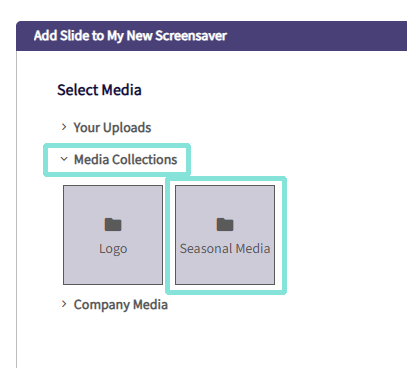
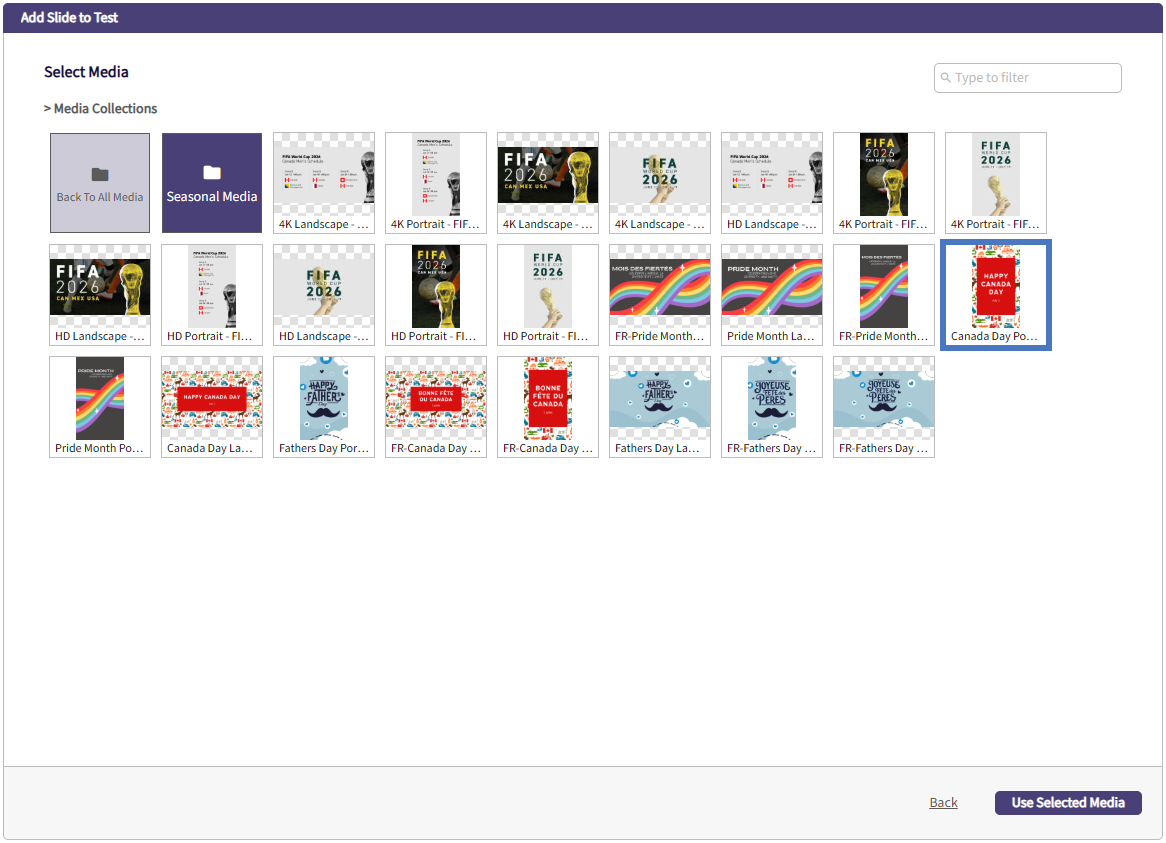
In the dialog box, scroll down to Media Collections and click Seasonal.
Select the media you'd like from the library. Our library of seasonal images will be available in the correct aspect ratio for your screen. Here I've chosen a Canada Day image for my portrait screen.
Once you've selected your media, you'll be able to add and position an overlay if necessary. I've added an overlay to tell users that my screen can be interacted with.
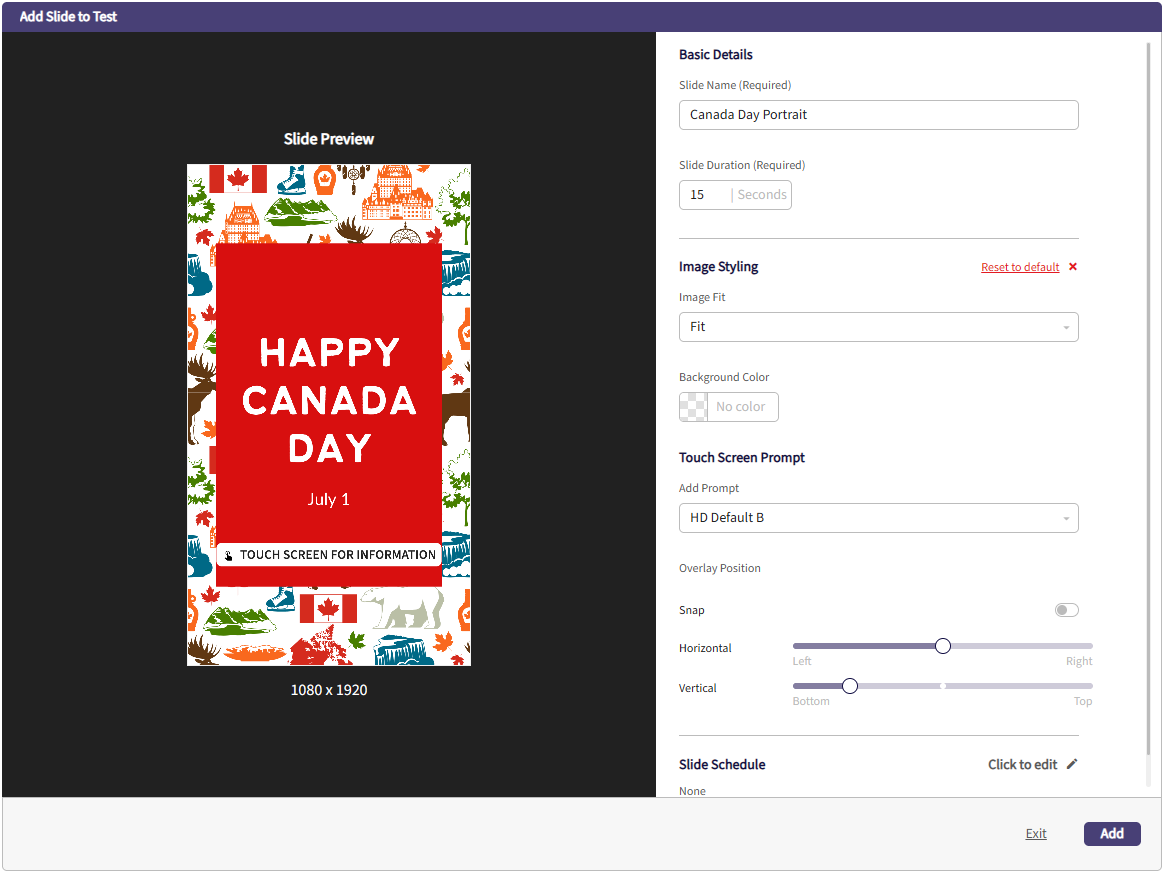
Click Add to save your changes.
For more help working with slides, please see How to manage Screensavers or Playlists.
You can click Publish Now to commit your changes. Please allow up to 60 minutes for changes to be synchronized to your on-site information hubs.
Working with Overlays:
In order to communicate how to access the home screen to our users, we can add an overlay to our slides on the CMS using a built-in feature. You can upload your own to use with your branding, or use the default one provided.
Using the Default Overlay:
We'll work with the same playlist as before and add a new slide with an overlay. First, we'll navigate to Playlists, then click to add a new slide.
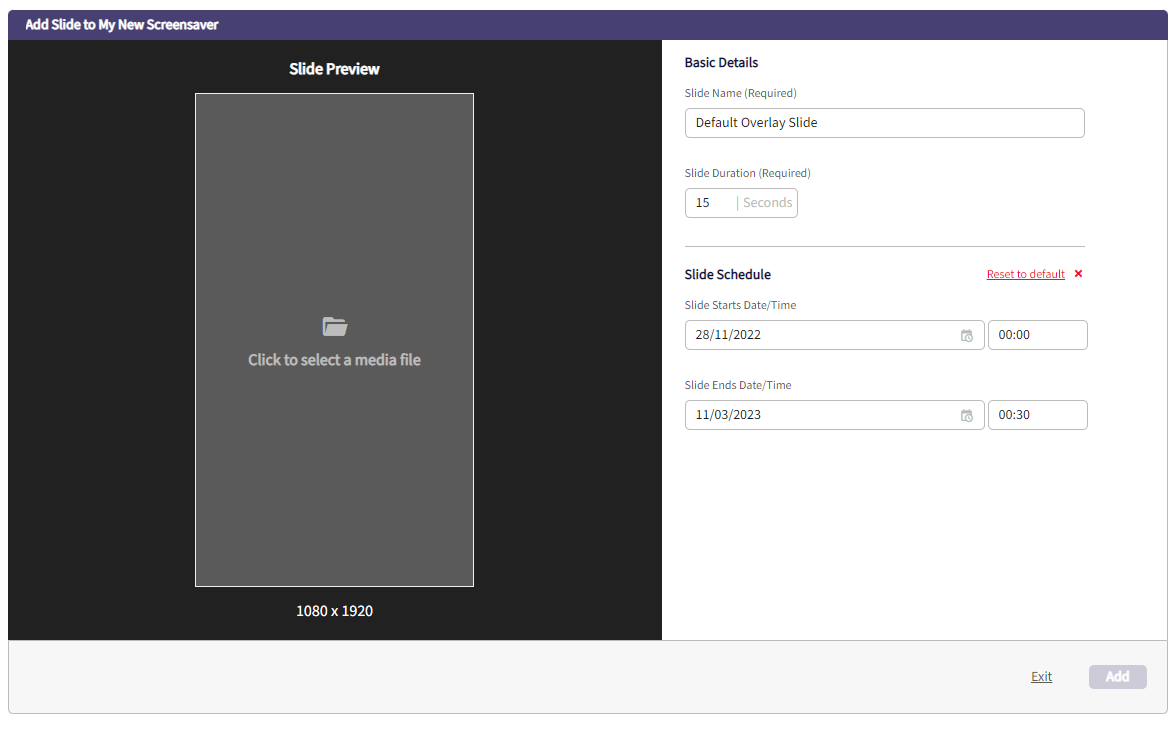
In the dialog that pops up, fill out the details for your new slide, including any schedule you want to add. Click on the large folder on the left to select or upload media. The preview box on the left automatically resizes to fit the dimensions you specified for the screensaver.
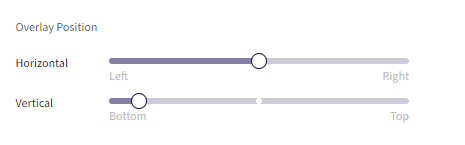
We can now choose to add the default overlay highlighted below to the image to create our slide. This feature is accessed under Image Styling. You can also click and drag the sliders under Overlay Position to manually adjust the position of the overlay. Click Add when you're finished.
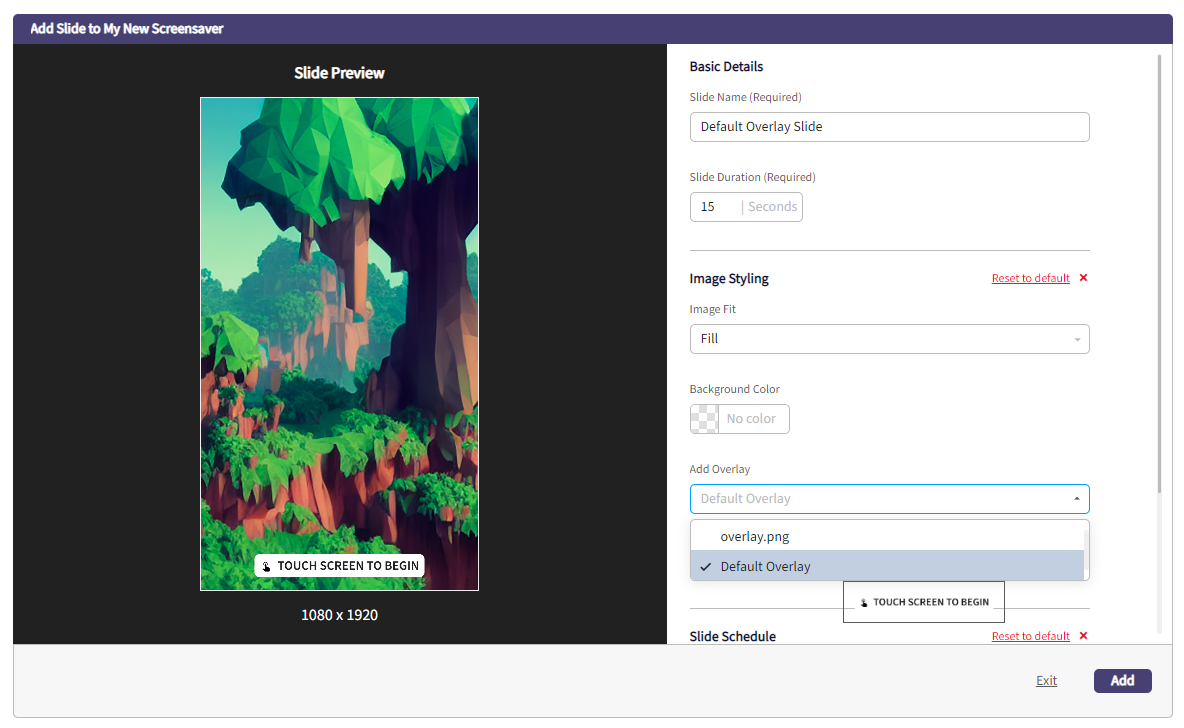
Our new slide with default overlay now exists in the rotation. You can repeat this process for as many slides as you like.
You can click Publish Now to commit your changes. Please allow up to 60 minutes for changes to be synchronized to your on-site information hubs.