![Untitled design (55).png]](https://help.yourhere.ca/hs-fs/hubfs/Untitled%20design%20(55).png?width=125&height=50&name=Untitled%20design%20(55).png)
If your account is enabled for XLS upload for listings, you can bulk add listings using our downloadable template. If you're looking to add listings/tenants one by one or by small groups, please see this article instead: How do I add or edit a tenant?
Uploading new listings:
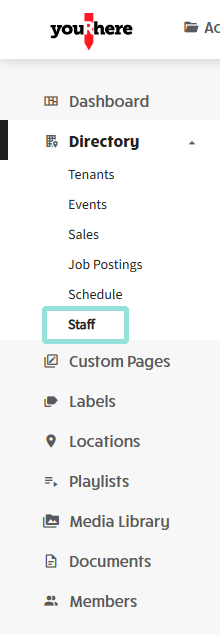
In the side navigation bar, click Directory, then on the listing group you want to add to. In this example, we'll use Staff.
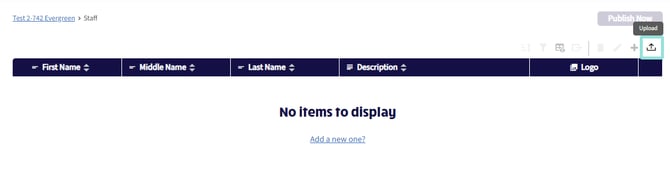
Click the Upload icon in the top left.
Downloading and using the XLS template
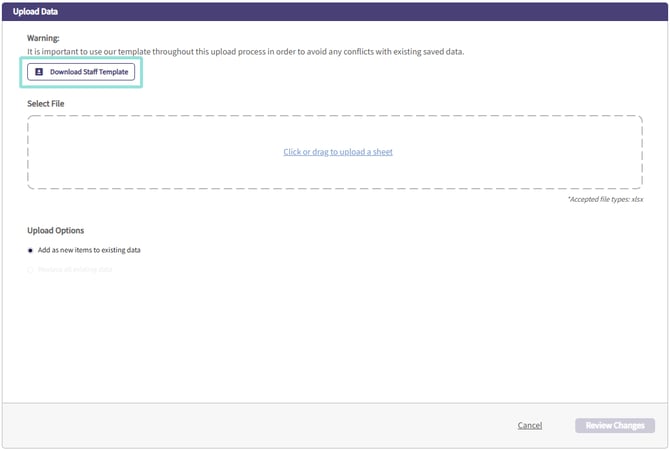
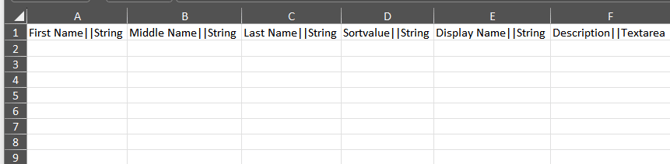
Follow the prompt to download the template, then open it to edit.
Open the spreadsheet in an editor of your choosing and edit the rows with the data you want to input. One row represents one listing entry. Save your changes

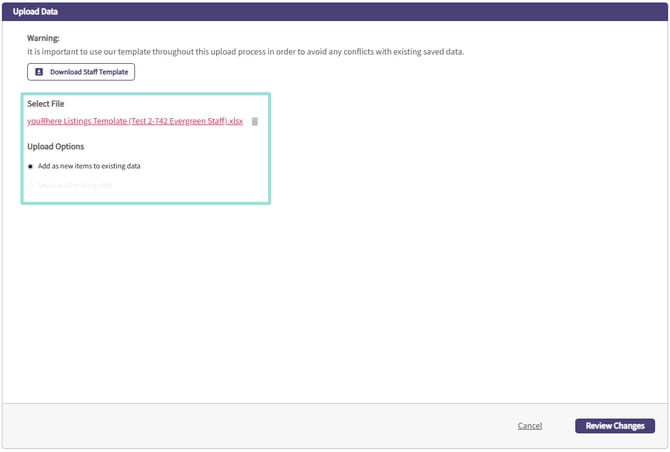
Return to the CMS window and select the file you've been working with for upload. In this case since our listings were empty, we'll be confirming that we're adding the listings as new items. Click Review Changes to confirm.
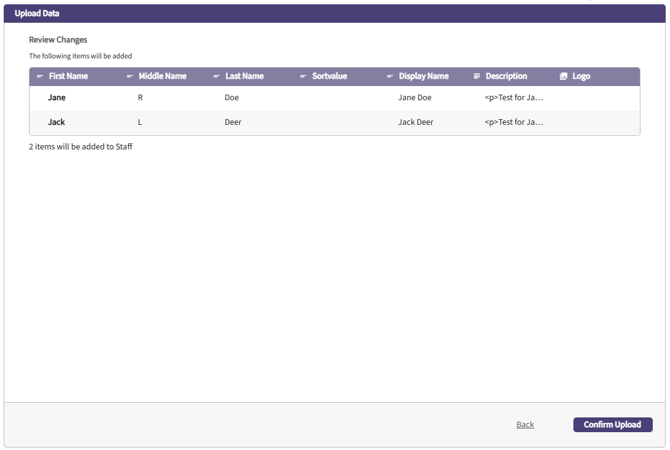
Review that your changes are appearing as intended, then click the Confirm Upload button to confirm.
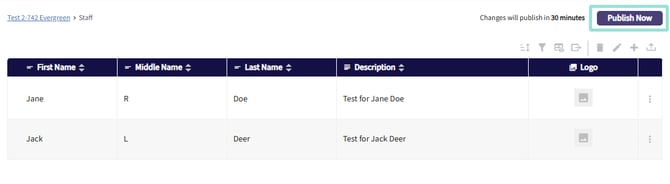
That's all! If you are finished working with tenants and need to access the data right away, you can click Publish Now to commit your changes. Please allow up to 60 minutes for changes to be synchronized to your on-site information hubs.